Appointments
An appointment authorises a producer to write business for one of your writing companies in a jurisdiction. The Appointments screen (sidebar → Appointments) is where you file appointments with the regulator, confirm them once the regulator responds, and manage renewals and terminations.
The screen shows four clickable KPI tiles — Pending confirmation, Active, Rejected, Terminated — above the appointment table: producer, company, jurisdiction, status, JIT flag, filing reference and effective date. Click a row to open its detail page.
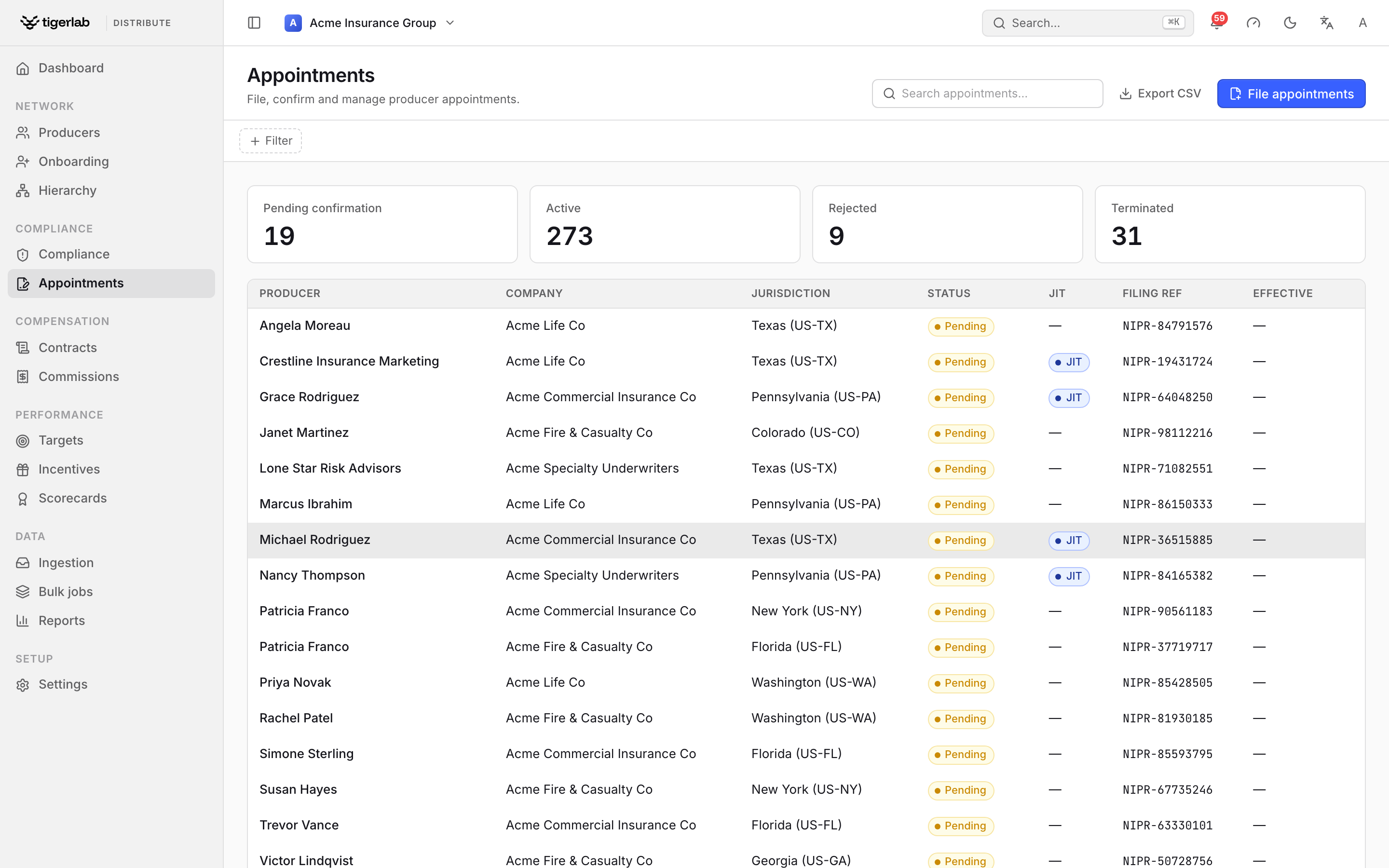
The Appointments screen. The KPI tiles filter the table; the JIT column flags just-in-time filings, and File appointments in the header starts a filing.
The appointment lifecycle
file ──▶ pending ──confirm──▶ active ──terminate──▶ terminated
            │                    ▲                       │
          reject               renew ◀───────────────────┘
            │                    ▲
            ▼                    │
         rejected            suspended ──terminate──▶ terminated
Status |
Meaning |
|---|---|
Pending |
Filed with the regulator; awaiting their response. |
Active |
Confirmed and in force — counts toward market access. |
Rejected |
The regulator declined the filing (reason recorded). |
Suspended |
Temporarily out of force. |
Terminated |
Ended; can be revived later with Renew. |
Filing an appointment
Filing is a four-step wizard that works for one producer or many:
Click File appointments.
Producers — tick one or more producers (each shown with their NPN); use Select all or the search box for larger selections. Click Continue.
Companies — tick the writing companies (each shown with its NAIC number) to appoint them with. Click Continue.
Jurisdictions — tick the jurisdictions. The footer keeps a running producers × companies × jurisdictions count so you can see how many filings you are about to create. Click Review.
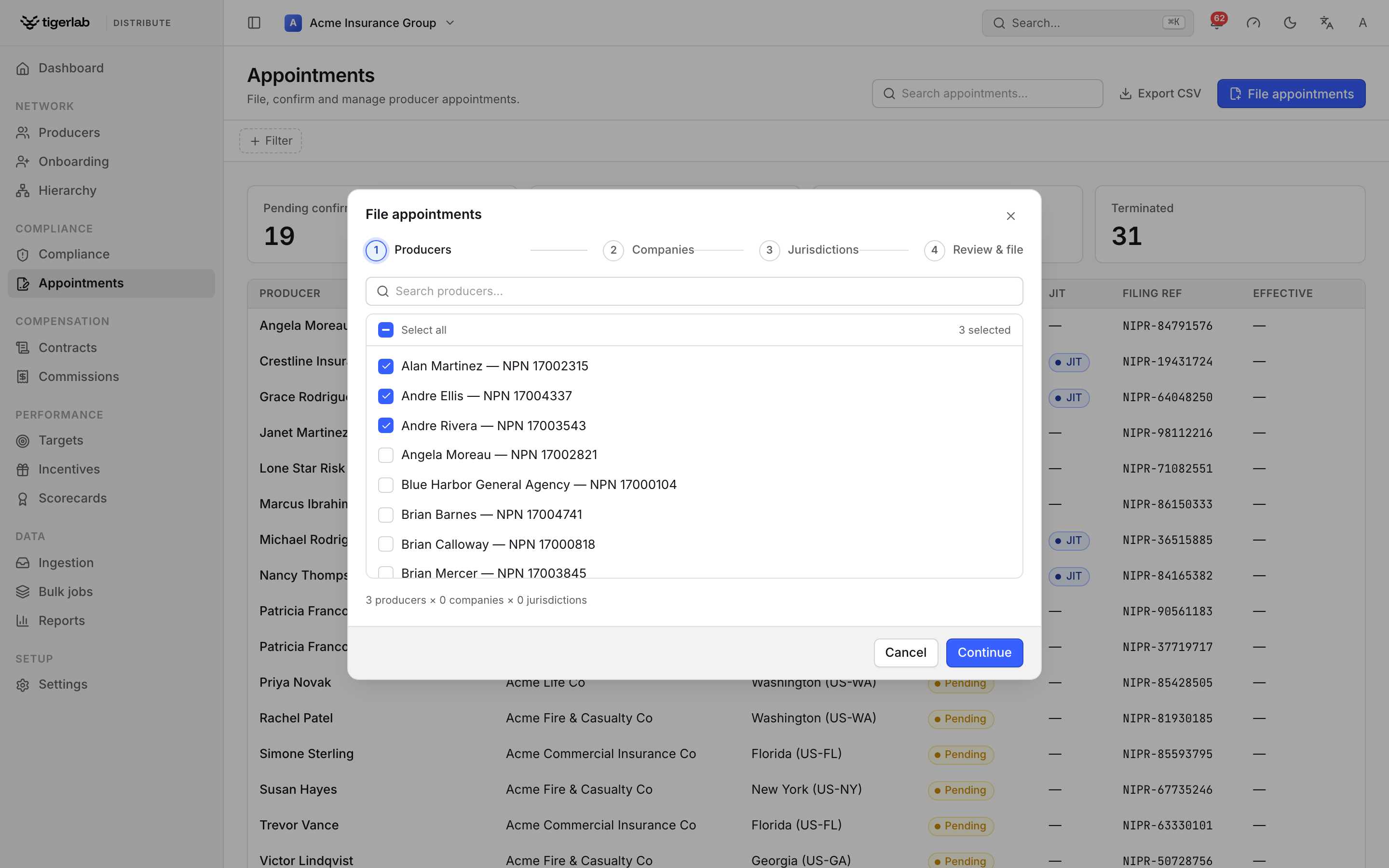
Step 1 of the File appointments wizard. Every producer you tick is combined with the companies and jurisdictions chosen in the next steps — the footer shows the running combination count.
The final Review & file step lists every producer × company × jurisdiction combination with a Ready or Skipped status, then files them all when you click File N appointments:
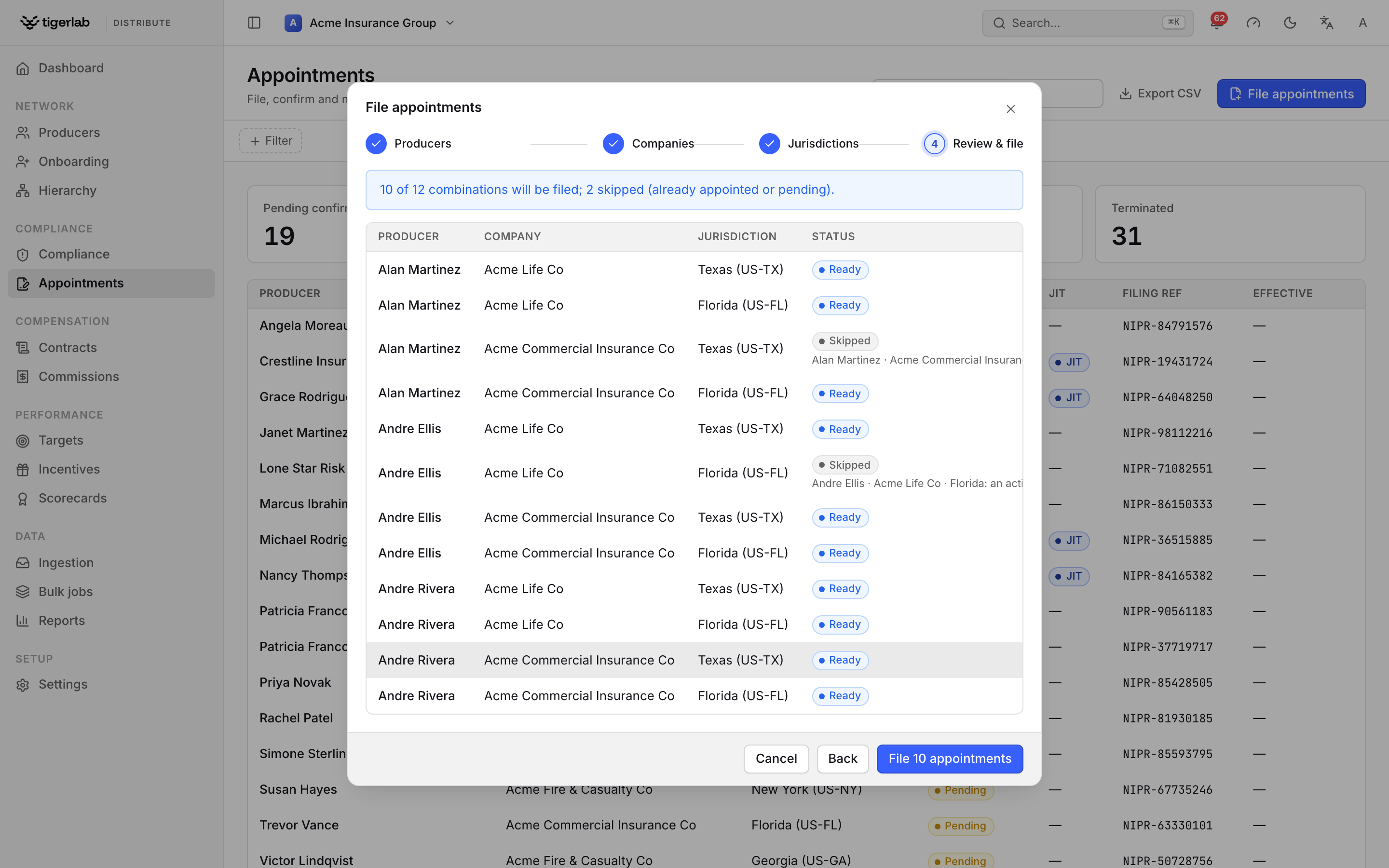
The Review & file step previews every combination before anything is written — here “10 of 12 combinations will be filed; 2 skipped (already appointed or pending).” Nothing is filed until you confirm.
Each filed appointment is recorded as pending with an auto-generated filing reference and a timestamped Filed entry in its history.
Note
A producer can hold only one active appointment per company and jurisdiction, so the wizard automatically skips combinations that already have an active or pending appointment rather than duplicating them. Running the wizard is itself a bulk job (Bulk operations).
Acting on an appointment
Open an appointment to see its own detail page — a breadcrumb links back to Appointments, a one-line status summary sits below the header, and the lifecycle action buttons (Confirm, Reject, Terminate, Renew) live in the page header. The page shows company, jurisdiction, appointment number, commission level, effective/termination dates, the filing method and reference, and the full filing history timeline (every action with its before → after status, timestamp and any regulator message). The actions offered depend on the status:
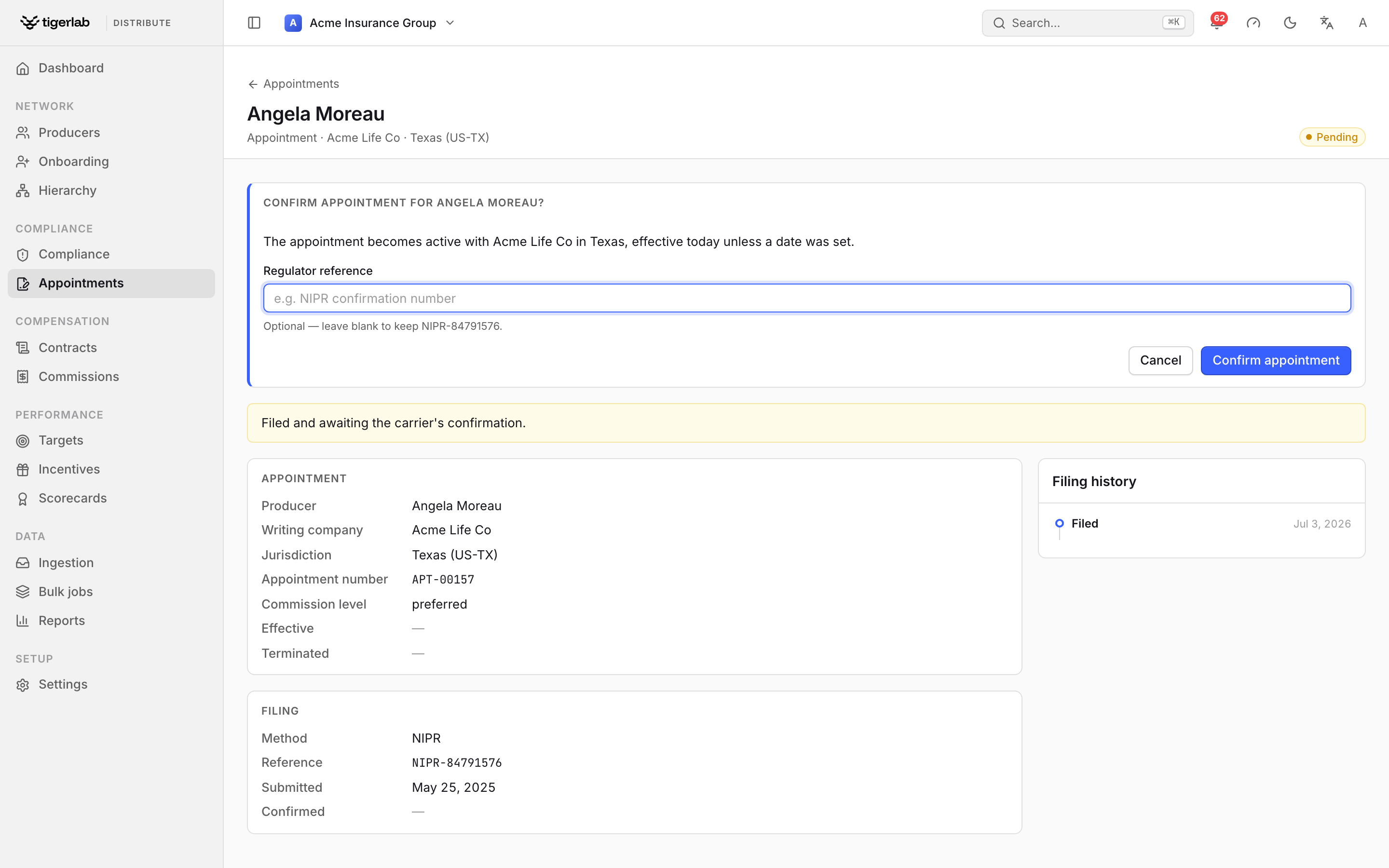
A pending appointment. Clicking Confirm… opens an inline confirmation — optionally capture the regulator’s reference, then Confirm appointment to make it active. The filing history timeline on the right records every step.
- While pending — Confirm or Reject
The page notes “Confirm once the regulator responds.”
Confirm… — optionally enter the regulator’s reference inline on the page (leave blank to keep the existing one) and click Confirm appointment. The appointment becomes active; if it had no effective date, today’s date is set. A Confirmed history entry is written.
Reject — enter the regulator’s Reason (required) inline and click Reject filing. The appointment becomes rejected and the reason is shown on a red banner.
- While active — Terminate
Terminate… — optionally add Notes inline, then click Terminate appointment. The termination date is set to today and a Terminated history entry is written.
While suspended — Terminate or Renew.
- While terminated — Renew
Renew… — confirm to return the appointment to active and clear its termination date. A Renewed history entry is written.
Invalid transitions are refused with a clear message, for example “Cannot confirm an appointment with status ‘Active’.”
Just-in-time (JIT) appointments
If your tenant enables JIT appointing (Tenant setup & administration) and the jurisdiction’s regulations allow it, the platform can file an appointment automatically at the moment a producer first needs one, instead of ahead of time. JIT-filed appointments are flagged with a JIT pill in the appointment list and detail. If the producer already holds an active appointment there, no JIT filing occurs.
Terminating a producer entirely
Terminating a producer’s whole relationship with your organisation is a distinct, heavier operation than terminating a single appointment. A producer termination records the type (voluntary, for cause, regulatory, inactivity, automatic) and a reason code (producer left, retired, license revoked, fraud, policy violation, inactivity, E&O lapsed, mutual agreement, other), and then:
terminates every active appointment the producer holds (each with its own history entry);
sets the producer’s status to terminated and stamps their end date.
A terminated producer fails the market-access check (Managing producers) until re-engaged.