Tenant setup & administration
This chapter is for the platform operator and the tenant’s administrators. It covers how a tenant is provisioned, how user accounts and access work, and how the reference data that the rest of the platform depends on is managed.
How a tenant is provisioned
Tenants are created by the platform operator — there is no self-service sign-up. Provisioning creates, in one step:
the tenant itself (name, URL slug, optional subdomain);
its carrier profile (legal name, group NAIC number, AM Best rating, domicile country, website);
the first owner user, identified by email, with an owner membership in the tenant.
The operator runs the create_tenant management command:
python manage.py create_tenant "Acme Insurance" \
    --slug acme \
    --owner-email owner@acme.com \
    --owner-name "Jane Owner" \
    --password '<initial password>' \
    --legal-name "Acme Insurance Group, Inc." \
    --group-naic 12345 \
    --subdomain acme
Warning
If --password is omitted the owner account is created without a
usable password and cannot sign in until one is set (with
manage.py changepassword or via the admin site).
For evaluation environments, python manage.py seed_demo creates two
fully seeded demo tenants (Acme Insurance and Globex Insurance)
with demo reference data.
Data isolation
Every business record belongs to exactly one tenant, and the isolation is enforced by the database itself (row-level security), not just by the application. A user working in tenant A cannot see or modify tenant B’s data under any circumstances, even through the API. If a request arrives without a valid tenant context it sees no data at all.
Users, memberships and roles
A user account (email + password) is global to the platform; what the user can access is decided by their memberships. A membership links one user to one tenant with a role:
Role |
Meaning |
|---|---|
Owner |
Full member of the tenant; counts as a manager for any manager-restricted operation. |
Manager |
Full member of the tenant; may perform manager-restricted operations. |
Member |
Standard staff access — reads everything in the tenant and runs the day-to-day operational workflows (producer onboarding and record edits, licensing and appointments, commission data ingestion, dispute handling, notifications). Actions that move money or change the commission/rate configuration are reserved for owners and managers — see Notes on access control below. |
Producer |
A portal account: not staff. Pinned to exactly one producer record and confined to the self-service portal (The producer portal). Producer-role users are excluded from every staff screen and API. |
Notes on access control:
A user with no active membership in a tenant is refused with “You do not have access to this tenant.” — even if they can sign in.
Memberships can be deactivated to suspend a person’s access without deleting their account.
A user may hold memberships in several tenants and switch between them with the tenant switcher (see Getting started).
Staff access is two-tier. Every active staff member — member, manager or owner — can read all of the tenant’s data and perform the operational workflows. Actions that move money or change the commission/rate configuration are restricted to owners and managers. A member who attempts one is refused, and those controls are hidden from their screens rather than failing on click. Manager-restricted actions include:
commission plans, plan rates, split rules and plan assignments, and the tenant’s default commission plan;
statement generation, finalisation and reconciliation, and manual ledger adjustments;
payment runs and payout instructions (release, mark paid, run now);
incentive programs, rules and targets, and award approval, settlement and reconciliation;
a producer’s commission tier, default commission rate, payment terms (cadence / minimum payout), tax identifier and lifecycle status; the override hierarchy (distribution links) and book transfers;
tenant management settings and reference-data catalogs.
Operational workflows that stay open to members include producer onboarding and record edits, licensing and appointments, commission data ingestion, statement dispute handling, and notifications.
Creating users
Administrators create user accounts and grant memberships through the platform’s admin site (the tenant record has inline editors for its carrier profile and memberships). The account’s sign-in identifier is the email address; the display name is a single free-text name field. Email verification is mandatory for self-registered accounts, and multi-factor authentication is available.
Note
Do not confuse platform users (your staff, who sign in to tigerdistribute) with producers (the agents and agencies you distribute through). Producers are business records managed in the application and onboarded through invitations (Onboarding producers). A producer can be given a login, but only to the self-service portal — granted from their detail page, signed in with passwordless magic links, and never able to reach staff screens (The producer portal).
Reference data
Several catalogs of reference data underpin the rest of the platform. Each tenant maintains its own copies. They are visible throughout the application (in dropdowns and filters) and are managed by administrators on the Settings screen (sidebar → Settings), which also hosts the tenant’s General settings (see below), contract templates (Contracts & e-signature) and exchange rates. (Producer tier bands moved to Performance → Design → Tier bands; see Scorecards & producer tiers.)
Every catalog tab works the same way: a table of the current entries, an Add 〈item〉 button in the header, and Edit / Delete links on each row.
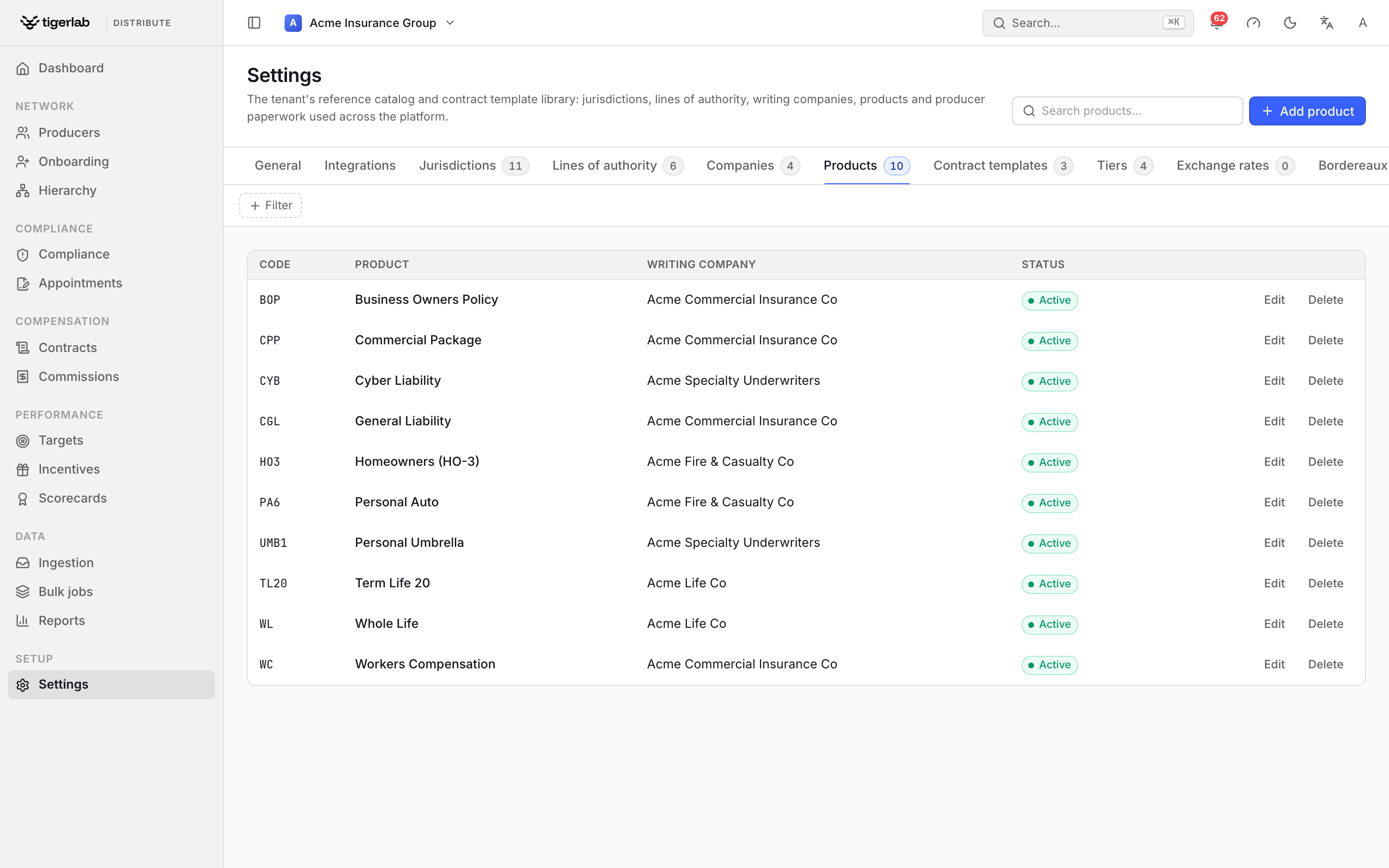
A reference-data catalog — here Products. Add product opens a create dialog; Edit on any row reopens the same dialog pre-filled; Delete removes an unused entry.
To add an entry, click Add 〈item〉, fill the short dialog and save; to edit one, click Edit on its row and change the fields in the same dialog. Required fields are marked with a red asterisk.
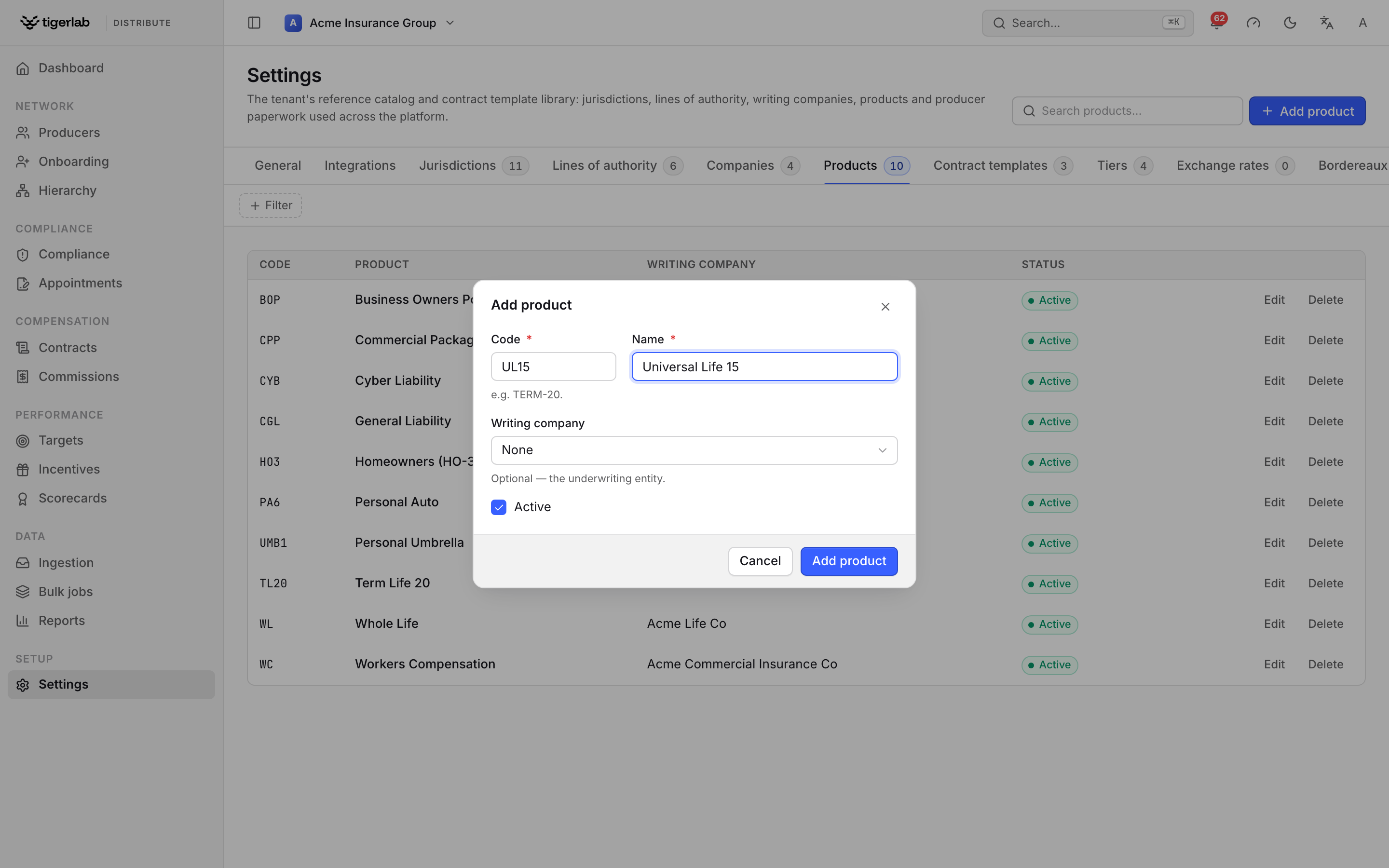
The Add product dialog. Reference items are captured in a small centered modal — a code, a display name, and any links (here the optional writing company) — with an Active toggle.
- Jurisdictions
The regulatory territories you operate in — countries and their subdivisions (state, province, territory, region), each with an ISO code, a display name and optionally the regulator’s name. Jurisdictions can be nested (a state under a country). Licenses, appointments and targets all reference jurisdictions.
- Lines of authority
The licensable lines (for example Property, Casualty, Life, Accident & Health), each with a code and display order. Lines of authority are attached to producer licenses. A line also sets the commission earning model — how a cancellation reverses commission for products on that line (life uses an advanced chargeback schedule; most others are as earned). This is the primary place to set it once per line of business; see Commissions: plans, statements, splits & payouts.
- Carrier companies
Your individual NAIC-registered writing companies — the entities producers are appointed with. Each has a name, NAIC number, AM Best rating and domicile country. (The carrier profile on the tenant describes the group as a whole; carrier companies are the individual underwriting entities.)
- Products
The insurance products producers can be authorised to distribute. Each has a code, a name, optionally the writing company it belongs to, and its line of authority (the line-of-business link that decides its commission earning model — set this so cancellations price correctly). A product may override the line’s earning model for exceptions. Products appear in producer product authorisations, in market-access checks and as optional filters on targets.
- Exchange rates
Effective-dated FX rates (from currency, to currency, rate, effective date) that power every cross-currency total on the platform. A conversion uses the latest rate on or before the conversion date; the inverse pair works too (1 ÷ rate), as does crossing through the base currency. Same-pair and duplicate entries are refused. When a needed rate is missing, the platform says so — the dashboard flags the missing pair with a link here, and operations that require the conversion refuse with the pair and date named.
Tip
Set up jurisdictions, carrier companies and products before onboarding producers — appointment filing requires a producer, a writing company and a jurisdiction, and invitations can reference a jurisdiction.
Management settings
Each tenant’s operational switches live on the Settings screen’s General tab (managers only; changes save immediately):
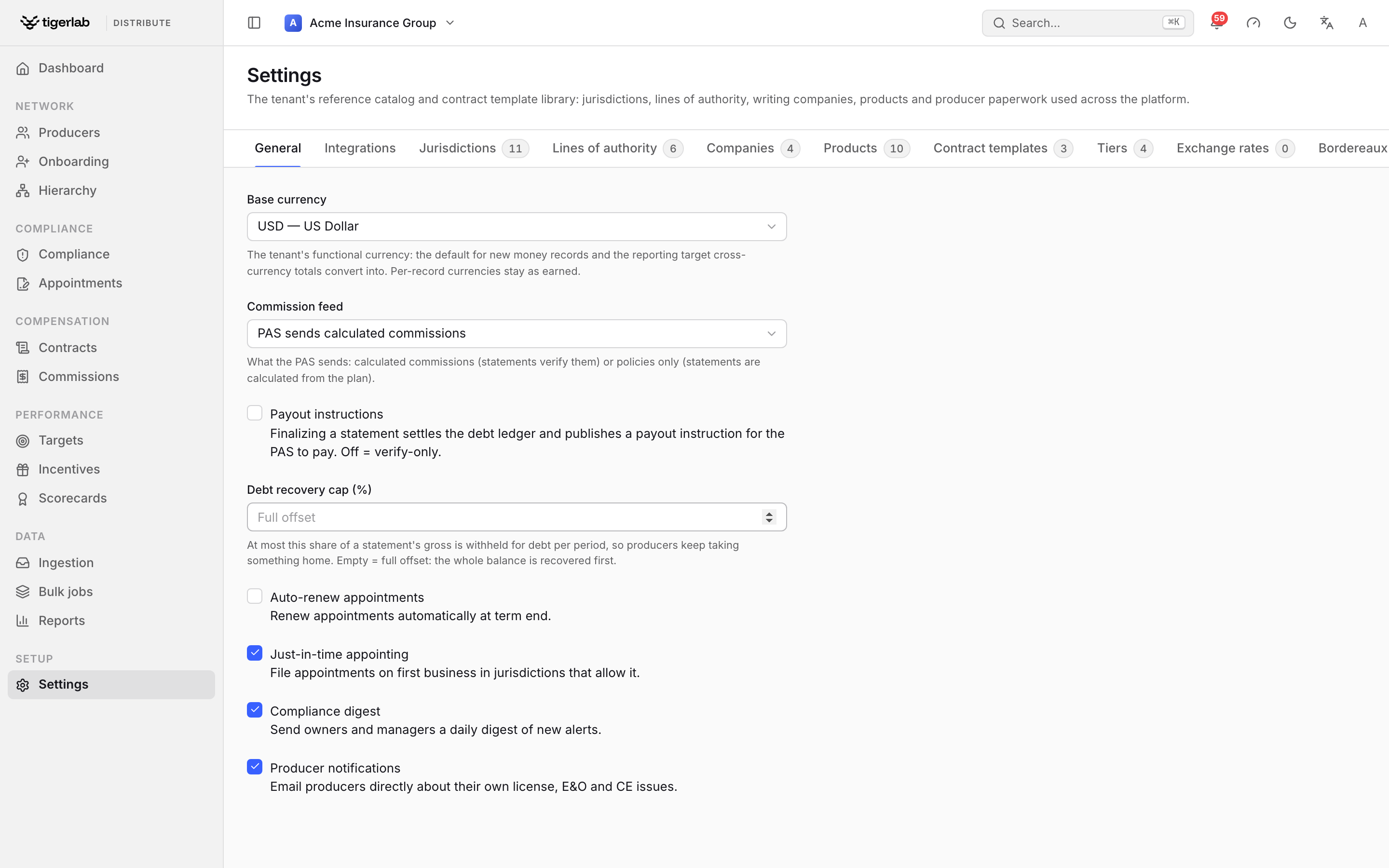
The Settings → General tab. Base currency, commission feed and the operational toggles described below; the tabs across the top reach the reference-data catalogs (jurisdictions, companies, products, exchange rates and contract templates).
Base currency — the tenant’s functional currency: the default for new money records and the reporting target cross-currency totals convert into. Per-record currencies stay as earned; see Commissions: plans, statements, splits & payouts.
Payout instructions — when on, payable statements and awards are settled by payment runs that publish a
PayoutInstructedV1event for the PAS to pay (default off: verify-only tenants keep the classic behaviour). Turn this on as the deliberate go-live step of your PAS payout integration — see Commissions: plans, statements, splits & payouts. Each producer’s payment cadence and minimum payout are set on their record (Managing producers).Debt recovery cap (%) — at most this share of a payment run’s gross is withheld for debt recovery per run, so indebted producers keep taking something home while the balance amortises. Empty (the default) = full offset: the entire outstanding balance is recovered before anything is paid out.
Auto-renew appointments — renew appointments automatically at term end (default off).
JIT appointing — enable just-in-time appointments, where an appointment is filed automatically at the moment of first business, in jurisdictions whose regulations allow it (default off), with a configurable grace period (default 30 days).
NIPR integration — enable synchronisation with the external producer registry (default off).
Default appointment term — in months (default 12).
Compliance hold on expiry — hold business when credentials lapse (default on).
E-signature provider — Internal (default), DocuSign or HelloSign for contract signing.
Alert thresholds — per alert type, how many days before an expiry event the corresponding compliance alert should fire (default 30). See Compliance monitoring.
Compliance digest — send owners and managers a daily digest of new compliance alerts (default on). See Compliance monitoring.
Producer notifications — email producers directly about their own license/E&O/CE issues (default on).
Commission feed — how commission statements are built from the PAS feed: PAS sends calculated commissions (the platform verifies them against the plan — the default) or Policies only — platform calculates. See Commissions: plans, statements, splits & payouts.
Verify grace window (days) — verify mode only: how many days after a period ends a late PAS commission still counts toward it, so a payment that lands a little into the next period isn’t flagged as missing (default 30). Set it to your carrier’s typical remittance lag; a payment beyond the window — such as a renewal-year commission on the same policy number — is not counted toward this period. See Commissions: plans, statements, splits & payouts.
Default cancellation clawback — the workspace fallback for how a cancellation reverses commission in calculate mode (as earned by default), used when a policy’s line of authority, product and rate line all leave it unset. Set the model per line of business on the Lines of authority tab; this is only the fallback. See Commissions: plans, statements, splits & payouts.
Split rounding — which party absorbs the leftover cent when a split commission doesn’t divide evenly (largest remainder — the fair default — writer absorbs, or payees absorb); the total is always conserved. A rate card may override it. See Commissions: plans, statements, splits & payouts.
Unrated policy handling — what happens when a producer on a plan has no matching rate line: hold as exception (the default and best practice — the policy goes to the unrated exception queue rather than being priced off a non-contractual rate) or fall back to default rate (use the producer’s negotiated default rate). A producer with no plan always uses their default rate, then the queue. See Commissions: plans, statements, splits & payouts.
Default commission plan — the plan newly approved producers are assigned to on onboarding. Set it from the plan’s detail page (Make onboarding default) on the Commissions screen.
Per-jurisdiction regulation parameters (termination notice days, appointment and renewal fees, whether JIT appointing is allowed, CE hours required and CE cycle length) are also maintained by administrators and drive appointment and compliance behaviour in that jurisdiction.
Onboarding checklist for a new tenant
Operator provisions the tenant and the owner account (
create_tenant).Owner signs in, verifies access, and has further staff accounts and memberships created.
Administrators load reference data: jurisdictions, lines of authority, carrier companies, products.
Administrators review management settings (JIT, thresholds, e-signature provider) and per-jurisdiction regulations.
Integration staff register webhook endpoints and set up PAS data ingestion (Integrations: PAS data & webhooks).
The onboarding team starts inviting producers (Onboarding producers).