Distribution hierarchy
The Hierarchy screen (sidebar → Hierarchy) shows your distribution network as a tree of upline → downline relationships — for example agents under an agency, agencies under an MGA — and records book-of-business transfers.
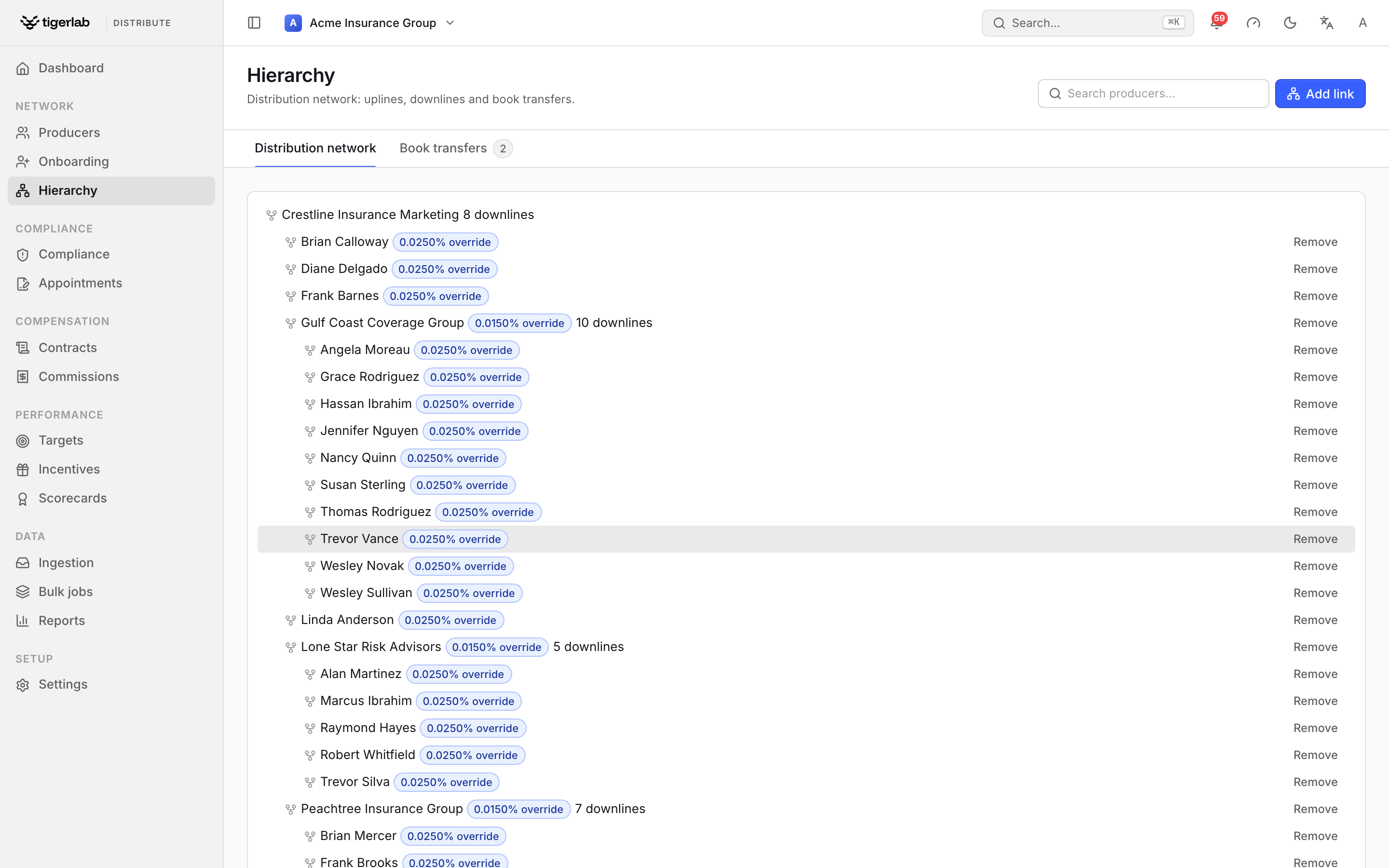
The Hierarchy screen. The Distribution network tab renders the upline → downline tree; each link shows its override rate, and the Book transfers tab records book-of-business moves.
The hierarchy matters beyond the org chart:
Goals roll up the tree — a producer-subject goal counts the producer’s own production plus their entire active downline’s (Performance cycles).
Override commission — each link can carry the upline’s override rate: the percentage of written premium the upline earns on every policy written in the branch beneath that link, at any depth. Statements compute and verify this automatically — see Commissions: plans, statements, splits & payouts.
The distribution network view
The screen has two tabs: Distribution network and Book transfers. The network tab renders the tree built from all active links; searching prunes the tree to matching producers while keeping their upline path visible. Each node shows the producer’s name, an accent pill with the override rate when one is set (for example “2.5% override”), and how many direct downlines it has. Click a node to jump to that producer’s detail page.
Adding a link
Click Add link.
Choose the Upline (parent) — e.g. the MGA or agency — and the Downline (child) producer. The two pickers exclude each other’s selection, so you cannot pick the same producer twice.
Optionally enter an Override rate (0–100, in percent). This is the upline’s override on premium: a 2% rate on a link means the upline earns 2% of the written premium of everything under that link. Leave it empty for a purely structural link that earns nothing.
Optionally set Effective from — the date the relationship starts. The upline earns override only on business the downline writes on or after this date, so a link added mid-month doesn’t pick up earlier production. Leave it empty for an open-ended link with no start bound.
Click Add link.
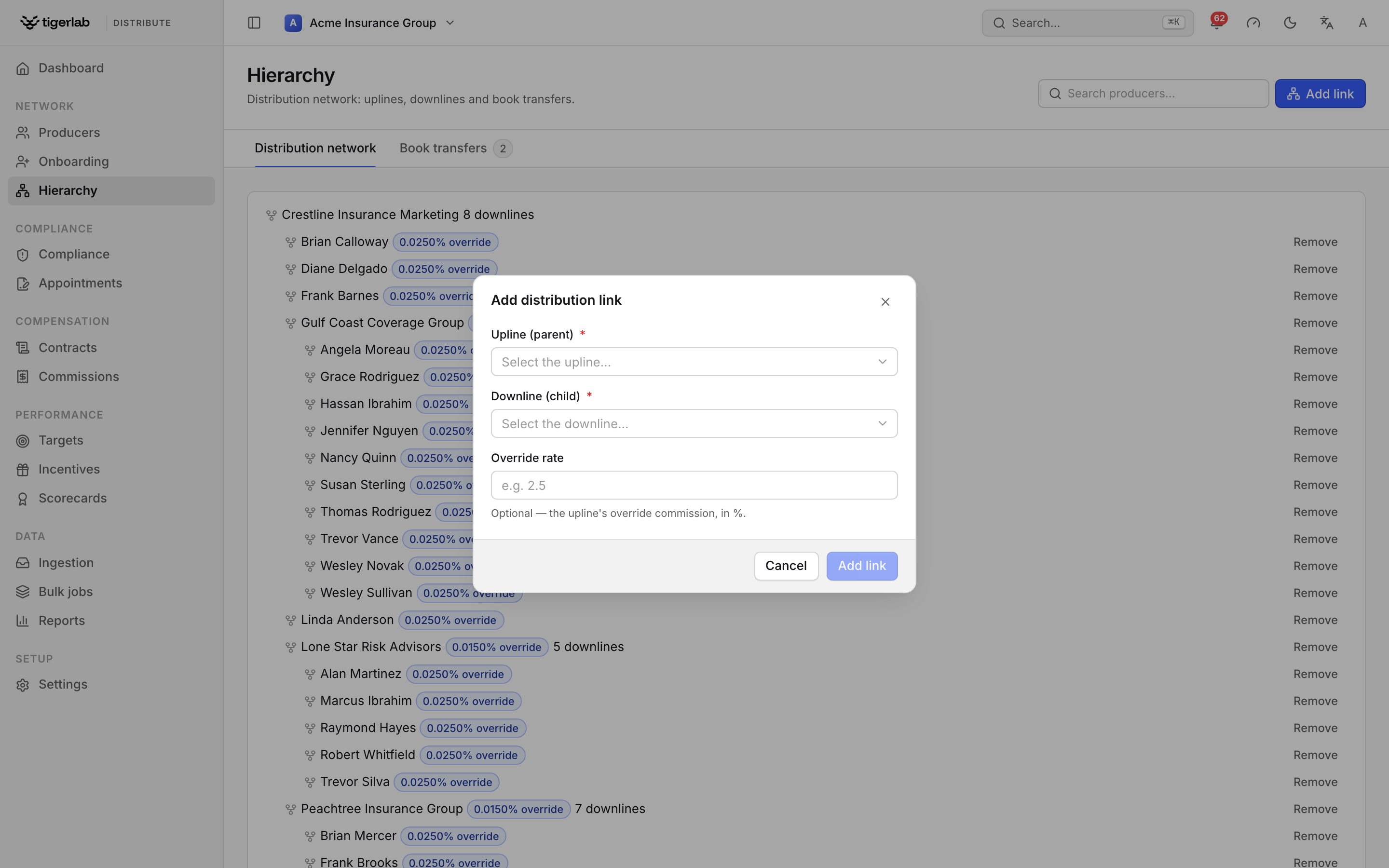
The Add distribution link dialog. Choose the upline and downline producers and, optionally, the upline’s override rate on premium written beneath the link.
The platform enforces three structural rules and refuses the link (a red banner shows the reason) if any is violated:
“A producer cannot be their own upline.”
“This link would create a cycle in the hierarchy.” — you cannot place a producer under someone who is already in their downline.
“This producer already has an active upline.” — each producer has at most one active upline. To move a producer, remove the old link first (or transfer the book).
Removing a link
Click Remove next to the link, then confirm “Remove 〈child〉 from 〈parent〉’s downline?”. The link is not deleted — it is terminated and kept for history, so past roll-ups and audits remain intact.
The confirm dialog asks for a Termination date, defaulting to today. The upline keeps override on the downline’s business written on or before that date and earns nothing after it — so a relationship that really ended last month can be backdated to its true end date rather than over-crediting override up to today. The date cannot be earlier than the link’s Effective from.
Note
Override is earned per policy against the link’s in-force window — its Effective from through its Termination date — not for a whole statement period just because the window brushes it. A link terminated mid-period still earns override on the downline’s pre-termination policies and nothing on the post-termination ones; a producer who moves uplines mid-period earns each upline override on its own window. A terminated link with no recorded end date earns no override (it can’t be bounded). Finalized statements are immutable either way — link changes only affect how future drafts compute.
Transferring a book of business
When a producer retires, leaves, or their book moves to another producer of record, use a book transfer instead of re-linking each downline by hand.
Click Transfer book….
Choose From (the producer giving up the book) and To (the producer receiving it), and enter the Reason (required).
Read the warning — “Every active downline link under 〈from〉 moves to 〈to〉 immediately.” — and click Transfer book.
All of the from producer’s active downline links are re-parented to the to producer at once. The completed transfer is recorded on the Book transfers tab with from/to, the number of links moved, the status, completion date and reason (searchable, filterable by status).
Note
A book cannot be transferred to the same producer.
If the receiving producer was themselves in the transferred book, their own link is left untouched — a producer can never become their own upline.
Transfers complete immediately and are recorded permanently; they cannot be undone in one step (you would transfer the book back).