Bulk operations
Everyday lifecycle actions — filing appointments, inviting producers, authorising products, sending contracts, terminating — are documented in their own chapters as single-record workflows. When the same action has to happen for many producers at once, the platform runs it as a bulk job: you select the targets, the platform validates every row and shows you exactly what would happen, and nothing is written until you confirm.
The two-phase safety model
Every bulk action goes through the same two phases:
Validate (dry run). The selection is expanded into rows — one per producer, filing, invitation… — and each row is checked without writing anything. Each row comes back as
Ready — will be executed on confirm;
Skipped — a safe no-op (already appointed, already invited, already authorised, already terminated…) that will not be executed and is not an error;
Invalid — bad data (missing NPN, invalid email, duplicate in the batch…) that cannot be executed.
Commit (confirm). Only after you have seen the preview — “X of Y combinations will be filed; N skipped; N invalid” — do you click the confirmation button (File N appointments, Terminate N producers, …). Only Ready rows run. Each row is executed independently through the same service as the single-record action (so audit history and webhook events are identical), and one failing row never aborts the rest: rows end as Done or Failed.
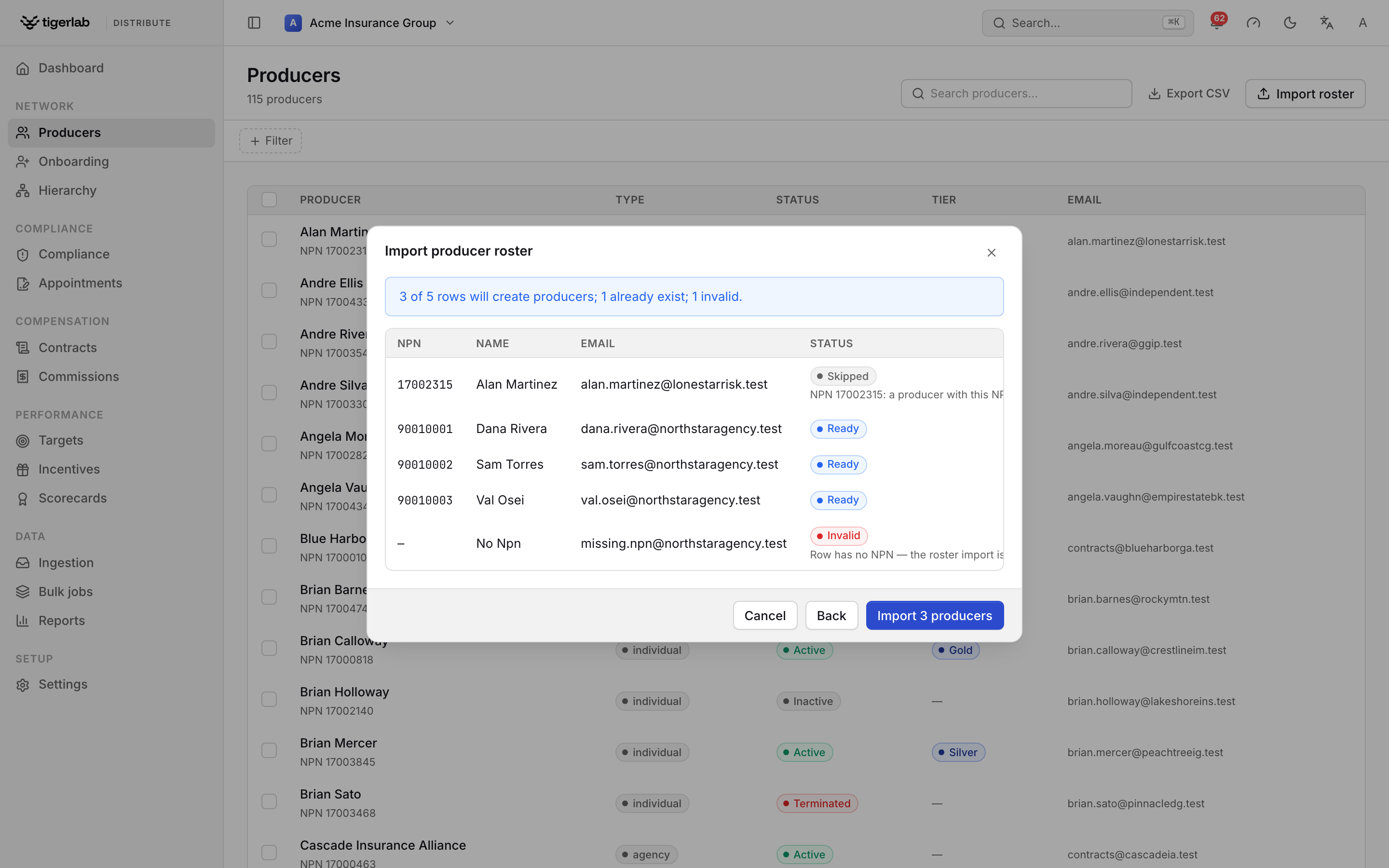
Every bulk action ends on a validation preview like this one (the roster import). Each row is marked Ready, Skipped or Invalid, with a one-line summary — “3 of 5 rows will create producers; 1 already exist; 1 invalid.” — and the commit button names exactly how many rows will run.
Closing the modal instead of confirming cancels the operation — a job that was validated but never committed writes nothing, ever. Commit is the only irreversible step.
Note
A bulk job is limited to 5,000 rows — larger selections are refused with a request to split them into smaller batches. Commits of more than 500 executable rows run in the background: the toast says “Processing N rows in the background — track it on the Bulk jobs page”, and you are notified in-app when the job finishes.
The bulk operations
Operation |
Started from |
What it does |
|---|---|---|
File appointments |
Producers (selection) or Appointments → File appointments |
Files one appointment per producer × writing company × jurisdiction combination; combinations already active or pending are skipped. |
Create invitations |
Onboarding → Invite producers |
One onboarding invitation per email address; existing pending invitations and known producer emails are skipped. |
Send invitation reminders |
Onboarding → Invitations tab (selection) → Send reminders |
Re-sends pending invitations; skips expired ones and any reminded in the last 72 hours. |
Authorize products |
Producers (selection) → Authorize products… |
Grants product authorisations for every producer × product pair; already-authorised pairs are skipped. |
Send contracts |
Producers (selection) → Send contract… |
Generates a contract from a chosen template for each producer and emails it for signature; producers with an open contract of the same type awaiting signature, or an already-signed one, are skipped. |
Sync registry |
Producers (selection) → Sync registry |
Pulls each producer’s licenses from the external registry; producers without an NPN are invalid. |
Terminate producers |
Producers (selection) → Terminate… |
Terminates each producer, ending all of their active appointments. |
Import producers |
Producers → Import roster |
Creates producers from a CSV roster keyed on NPN; existing producers are skipped, never overwritten. |
Selecting producers
On the Producers screen, tick the checkbox column to select rows. A banner appears — “N selected” — with the bulk actions: File appointments…, Authorize products…, Send contract…, Sync registry, Terminate… and Clear.
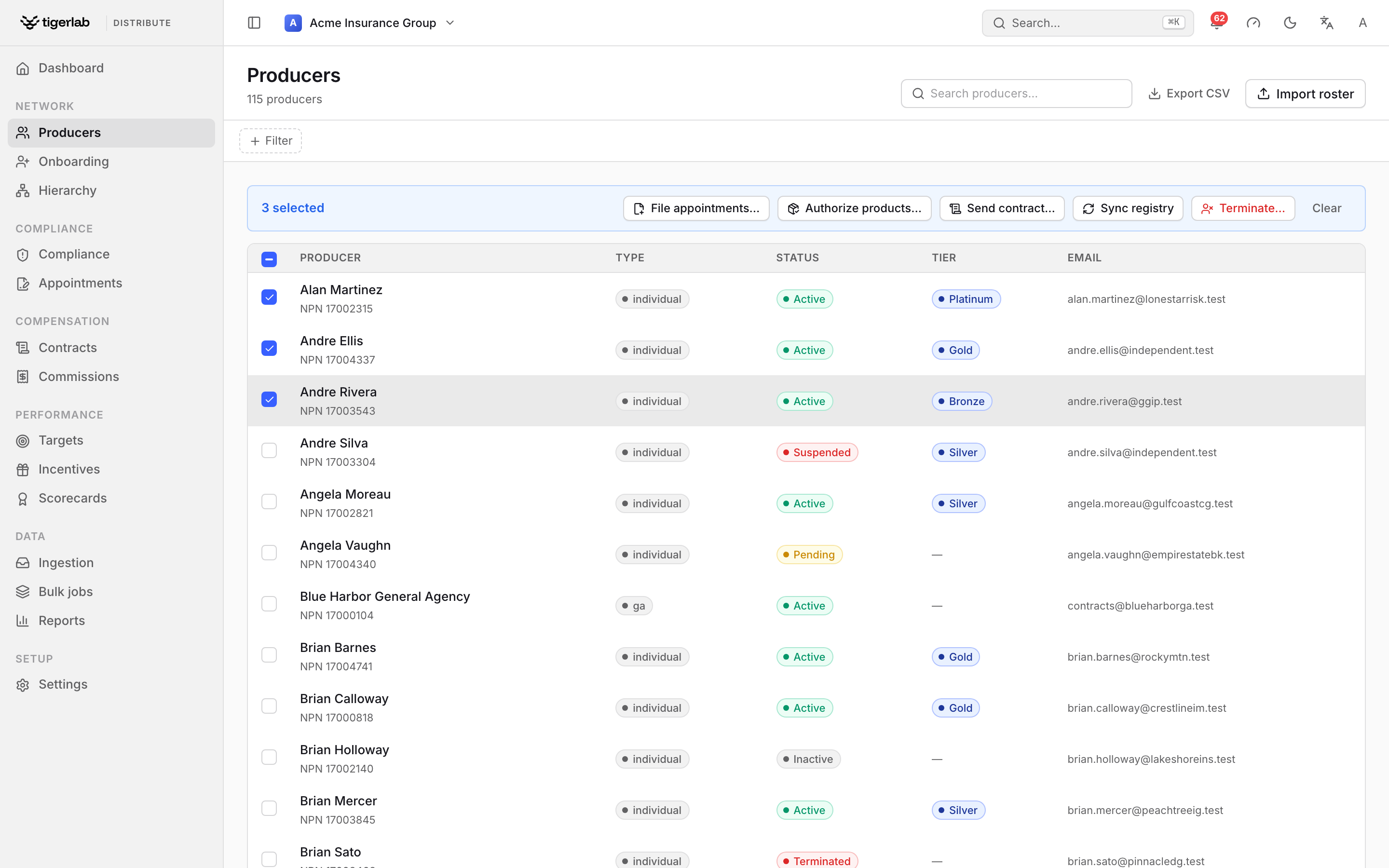
Ticking rows on Producers reveals the bulk-action banner. The header checkbox selects the whole filtered list at once.
Filing appointments in bulk
The appointment wizard (File appointments) walks four steps — Producers, Companies, Jurisdictions, Review & file — each a searchable checklist. A hint shows the fan-out as you go (“2 producers × 3 companies × 4 jurisdictions = 24 filings”). Review validates the batch and shows the preview; File N appointments files them. Rows that fail on commit are listed with their reason — fix the cause and re-run just those combinations from the wizard (the already-filed ones will simply be skipped).
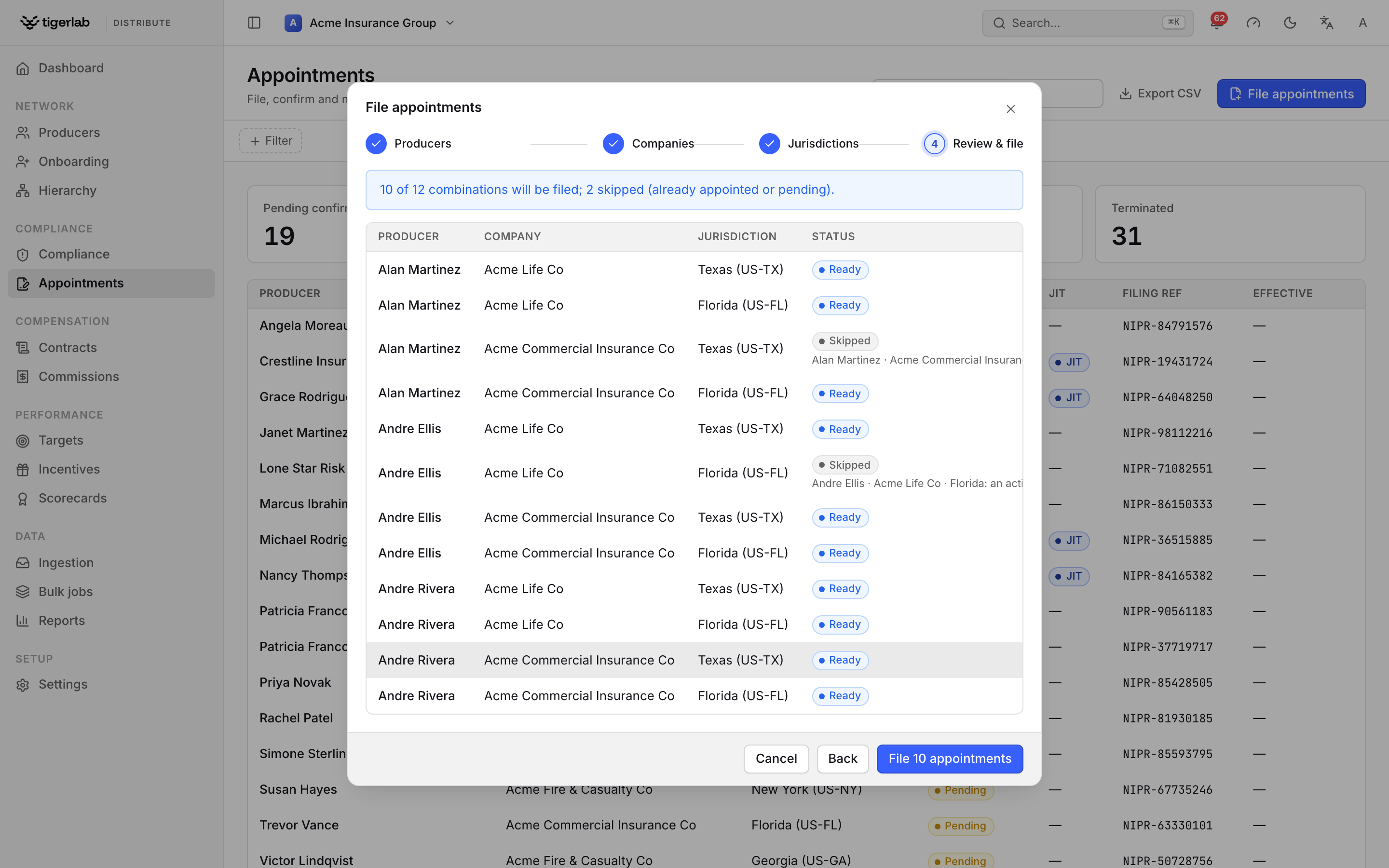
The wizard’s Review & file step expands your selections into every combination and marks each Ready or Skipped before you commit with File N appointments. (Step-by-step in Appointments.)
Terminating in bulk
Terminate… asks for the Termination type (Voluntary, Inactivity, Regulatory, Automatic), a Reason and an optional Detail note recorded on every termination. Review termination shows a warning preview — “N producers will be terminated, ending M active appointments… Nothing happens until you confirm.” — before the final Terminate N producers.
Warning
For-cause terminations cannot be processed in bulk — they require individual producer notice and regulator reporting, so the platform refuses the whole batch. File them individually from the producer’s page.
Importing a producer roster
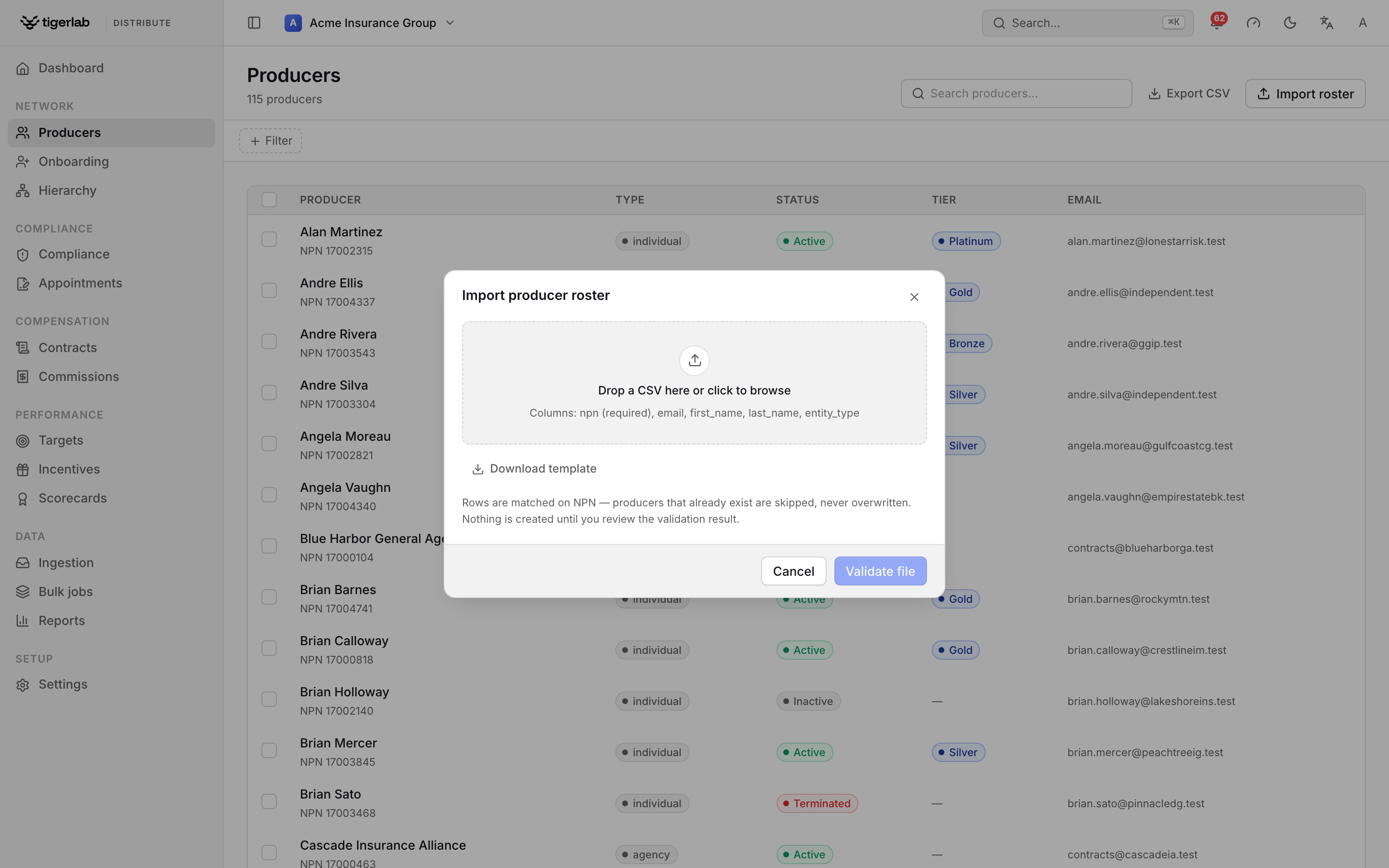
The Import roster dialog. Drop a CSV on the dropzone (or Download template for a correctly shaped starter), then Validate to see the preview shown earlier before any producers are created.
Import roster (Producers page header) accepts a CSV — drag it in or browse. Columns:
npn— required; the row’s producer is keyed on it.email,first_name,last_name— optional.entity_type— optional; defaults to individual.
Header names are matched case-, space- and hyphen-insensitively, and
Download template gives you a correctly shaped starter file.
Validate N rows shows the preview — “X of Y rows will create
producers; N already exist; N invalid” — and Import N producers
creates them (as active). A producer whose NPN already exists is
skipped; a roster import never modifies existing records. API users
can POST the file directly to /api/bulk-jobs/import-roster/.
The Bulk jobs page
The Bulk jobs screen (sidebar → Bulk jobs) is the read-only history of every bulk action: operation, status, row counts (succeeded / skipped / errors) and creation date. Jobs are started from the screens above, never from here.
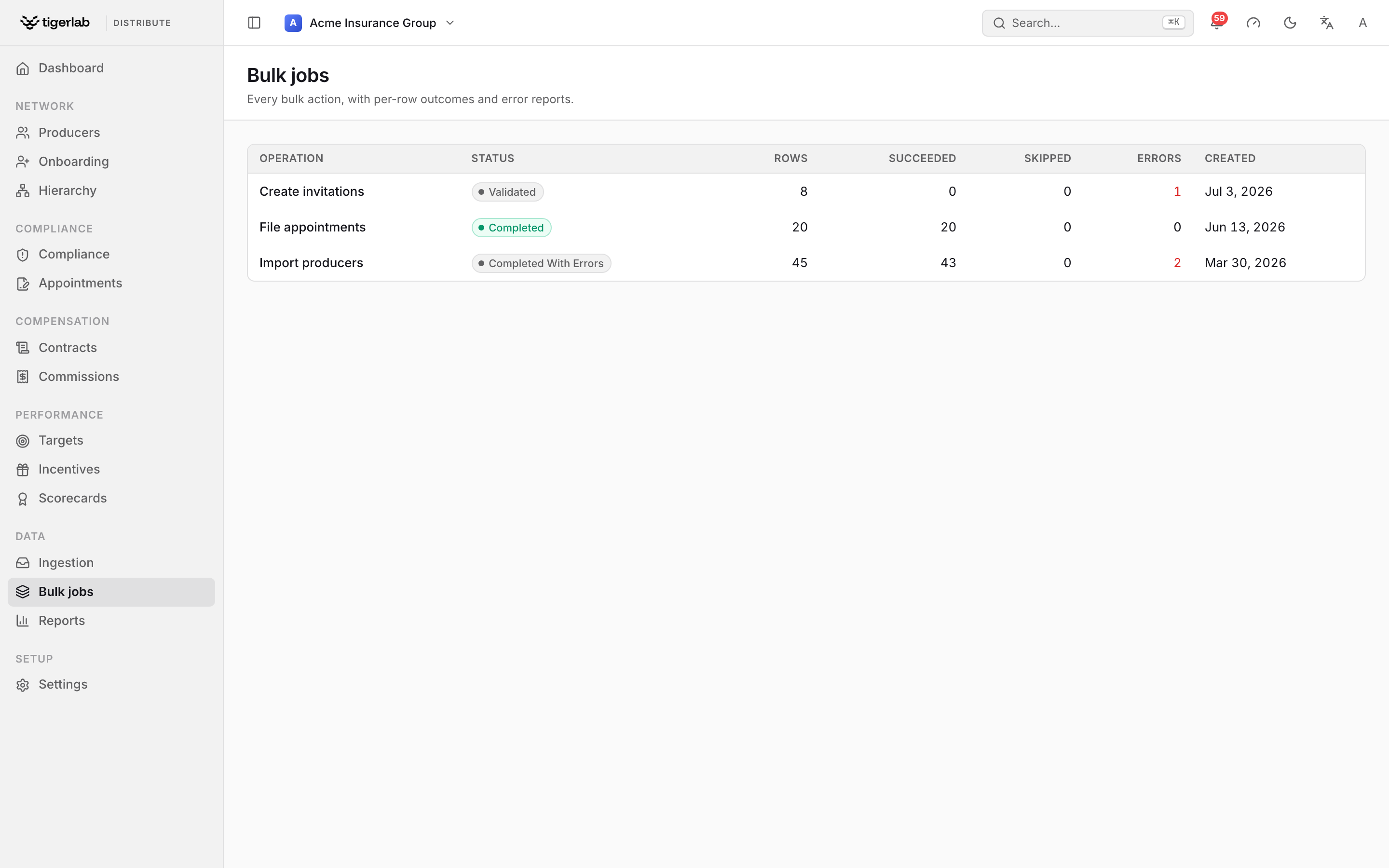
The Bulk jobs history. Each row is one bulk operation with its status (Validated, Completed, Completed with errors) and per-outcome counts; click a job for the per-row detail and error report.
Job statuses are Validated (dry run done, nothing committed), Running (a large commit is processing in the background), Completed and Completed with errors (at least one row failed).
Click a job to open its detail page: each target with its outcome and message, and a summary line (“N rows · N succeeded · N skipped · N invalid · N failed”). Download error report exports the invalid and failed rows — target, error code and message — as a CSV you can fix and feed back into the next run.
Note
The Errors column counts invalid and failed rows together. Skipped rows are never errors — they are the platform declining to do something that is already done.
Any active staff member of the tenant can run bulk jobs; there is no separate bulk-operations role.