Contracts & e-signature
The Contracts screen (sidebar → Contracts) manages producer agreements: their templates, generated documents, versions and electronic-signature lifecycle.
Four clickable KPI tiles — Awaiting signature, Drafts, Signed, Voided — sit above the contract table (contract title and type, producer, status, signer email, sent and signed dates). Click a row to open its detail page, with a breadcrumb back to Contracts; the lifecycle actions (Send, Record signature, Amend, Renew, Void, Edit) sit in the page header above a status summary line.
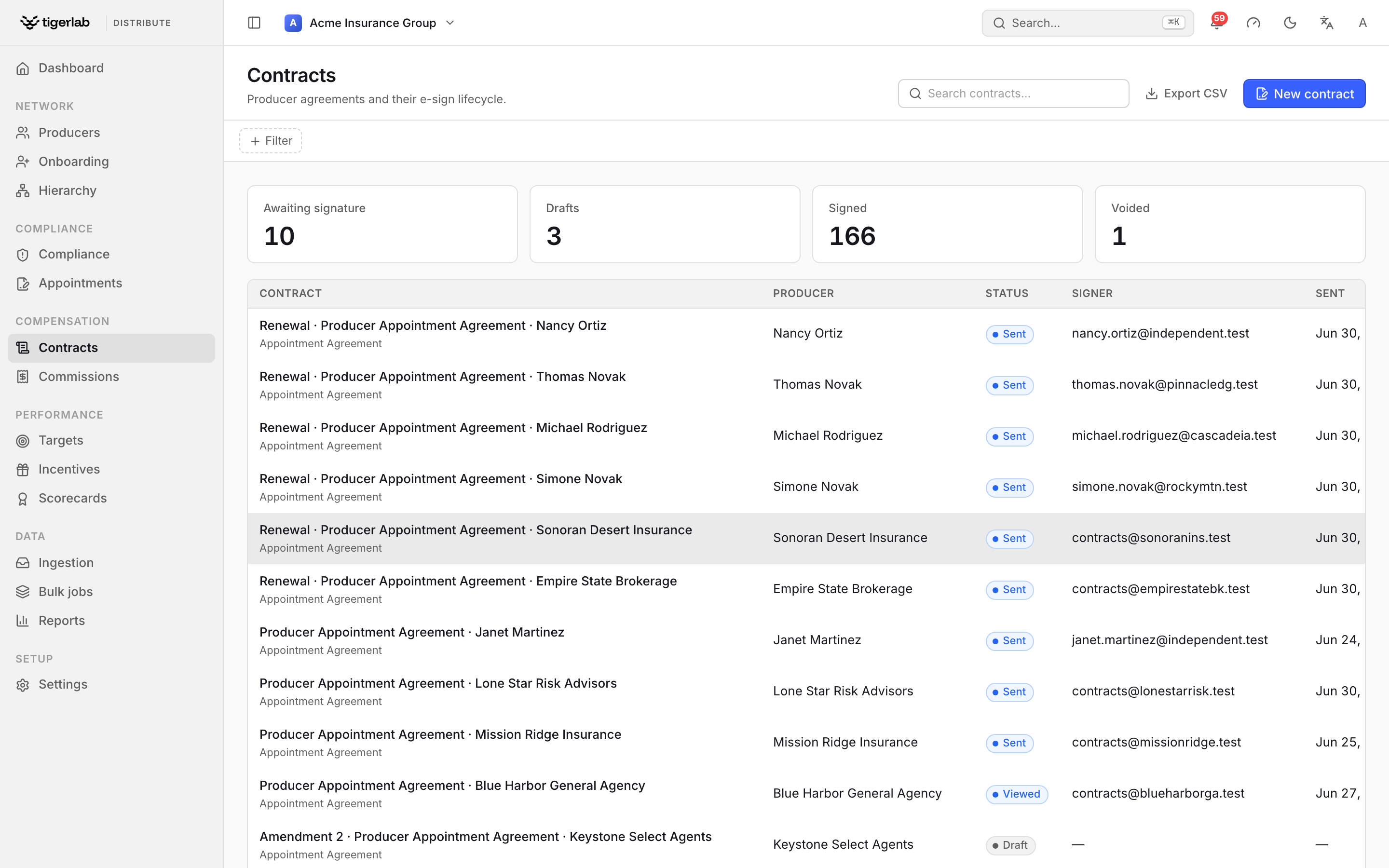
The Contracts screen. Each row is a producer agreement with its e-signature status (Draft, Sent, Viewed, Signed); the KPI tiles filter the table and New contract starts one.
Contract types
Appointment agreement — the core producer agreement.
Commission schedule — the rate schedule addendum, kept separate so rates can change without reopening the master agreement. A schedule can be plan-backed: rendered from a commission plan’s rate table, so that signing it locks the plan’s rates (Commissions: plans, statements, splits & payouts).
NDA — non-disclosure agreement.
Binding authority — delegated underwriting authority.
Product authorization — product-specific authorisation.
Contract templates
A contract’s document is generated from a contract template — an approved body with merge fields, managed by tenant managers under Settings → Contract templates. Starter templates for the standard producer paperwork (appointment agreement, commission schedule addendum, mutual NDA) can be added with Add starter and then adapted to the tenant’s own approved wording.
Template bodies are HTML with Django-template merge fields filled from platform data at generation time:
{{ producer.name }}   {{ producer.npn }}    {{ producer.code }}
{{ producer.tier }}   {{ producer.default_commission_rate }}
{{ tenant.name }}     {{ tenant.legal_name }}
{{ contract.title }}  {{ contract.effective_date }}
{{ contract.termination_date }}  {{ contract.renewal_notice_days }}
{{ today }}
The agreement is therefore a projection of platform data: the producer’s identity, rates and dates flow into the document instead of being retyped.
The e-signature lifecycle
draft ──send──▶ sent ──(viewed)──▶ viewed ──sign──▶ signed ──amend──▶ new draft (v+1)
  │               │                   │
  └───── void ────┴───────────────────┘        (signed, expired and
                                                voided are final)
Status |
Meaning |
|---|---|
Draft |
Created; document being prepared; not yet sent to the signer. |
Sent |
Sent for signature; awaiting the signer. |
Viewed |
The signer has opened it. |
Signed |
Executed — a permanent legal record. |
Expired |
The signing window lapsed (stale sent/viewed contracts are expired automatically by the daily monitoring sweep). |
Voided |
Withdrawn before signature. |
Step 1 — Create a draft
Click New contract.
Select the Producer, the Contract type and — recommended — a Template for that type. Optionally set the Effective date, Term ends date and a Title (defaults to the template’s or type’s name).
For a commission schedule, a Commission plan selector appears: pick a plan to make the schedule plan-backed (“a plan-backed schedule renders the plan’s rate table; signing it locks the plan’s rates”), or No plan for a free-form schedule. Plan-backed schedules can also be drafted straight from the plan’s detail page with Draft schedule… (Commissions: plans, statements, splits & payouts).
Click Create draft.
The contract is created as a draft with a unique signing token. Draft fields (title, dates, template) can still be edited; every other status refuses edits with “Only draft contracts can be edited.”
Step 2 — Generate or attach the document
A contract cannot be sent until it has a document — sending without one is refused with “Cannot send a contract without a document.” From the page’s Document section, while the contract is a draft:
Generate from template — renders the template’s merge fields with the producer’s data and produces the contract PDF. The rendered body and the PDF’s SHA-256 hash are snapshotted on the contract, so the record preserves exactly what was signed even if the template is edited later. Regenerating replaces the draft document in place.
Attach file… — upload an externally produced document (for example negotiated paper) instead; it is hashed the same way.
View PDF opens the current document; the document hash is shown beside it.
Step 3 — Send for signature
Open the draft and click Send for signature…. Enter the Signer
name and Signer email, then confirm. The contract moves to
sent, the sent timestamp is recorded, and the signer receives an
email with the document attached and a personal signing link
(/sign/<token>/). In local development the email lands in Mailpit.
While a contract is sent or viewed you can:
Resend… — send it again (for example to a corrected address); a fresh email goes out each time.
Record signature… — capture the signature on the signer’s behalf (below).
Void — withdraw it; the signing link stops working.
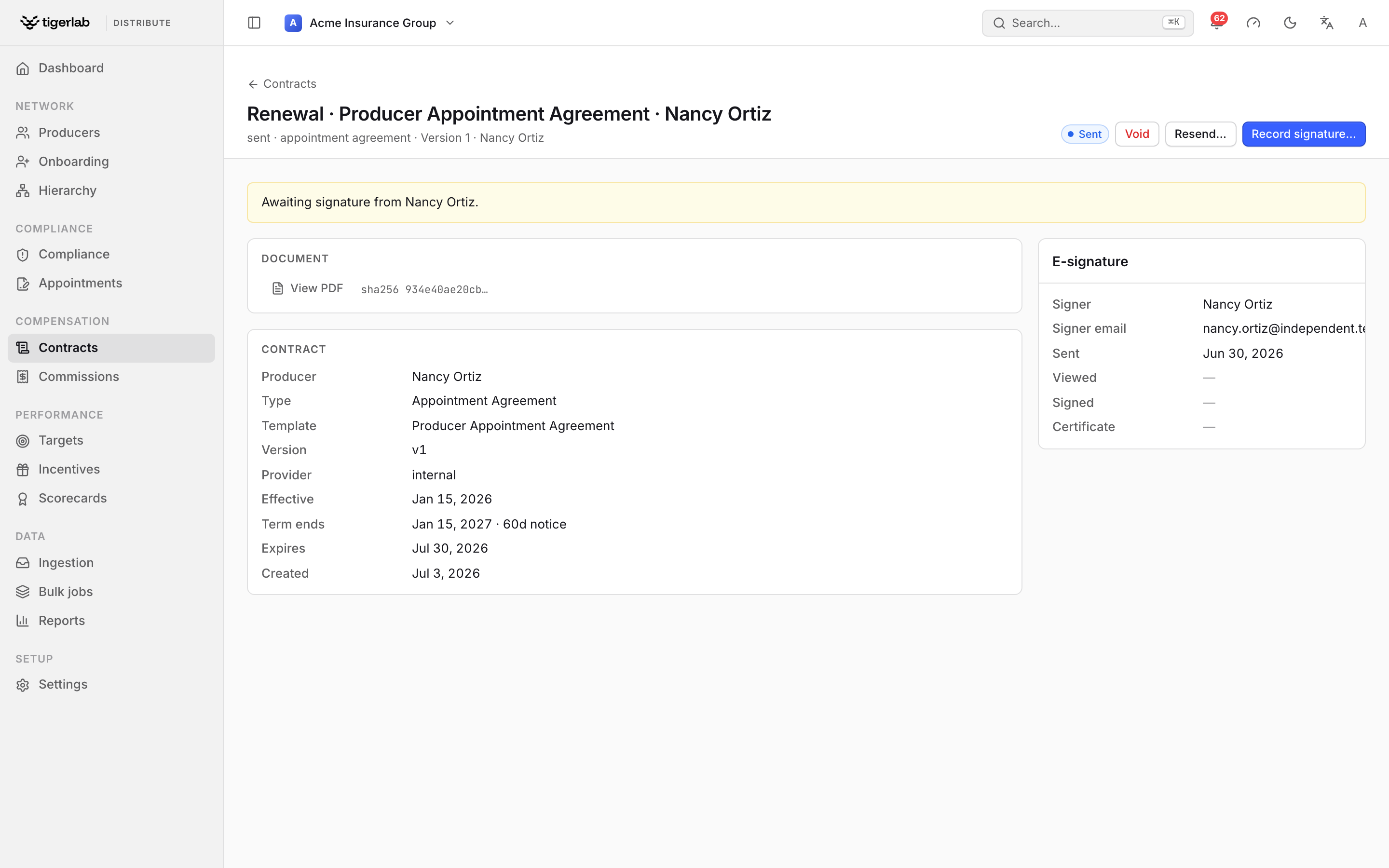
A sent contract awaiting signature. The header carries the lifecycle actions (Void, Resend…, Record signature…), the Document card shows the PDF and its hash, and the E-signature sidebar tracks the signer, sent/viewed/signed timestamps and certificate.
Tip
To send the same template to many producers at once — a new NDA for the whole channel, say — select them on the Producers screen and use Send contract… (Bulk operations). Producers with portal access also see contracts “waiting for your signature” on their portal, with a Review & sign shortcut to the signing page (The producer portal).
Step 4 — The signer signs
The signing link opens a public page — no login needed; the token is the credential. Opening it advances the contract to viewed. The signer can read the PDF, then enter their name and email and click Sign this contract, which executes it exactly like the internal ceremony below.
Alternatively, staff can click Record signature… in the page header, enter the Signer name and Signer email (both required — omitting them is refused with “Signer name and email are required to sign.”) and confirm.
The platform stamps the signature time and captures evidence: the
signer’s name, email, IP address and browser, plus a cryptographic
certificate hash chained to the document’s own hash — all visible
in the page’s E-signature section. The contract is now signed:
the signer receives a confirmation email carrying the certificate
hash, your managers are notified in-app, a ContractSignedV1 event
is published to the webhook outbox (Integrations: PAS data & webhooks) — and, for a
plan-backed commission schedule, the plan version locks
(Commissions: plans, statements, splits & payouts).
Warning
A signed contract is a legal record and cannot be voided — attempts are refused with “Cannot void a contract with status ‘Signed’.” Void a contract while it is still draft/sent/viewed if it should not proceed.
Certificate of completion
Every signed contract has a downloadable certificate of completion (the Certificate button in the page header; the signer gets their own copy from the signing page). It is rendered on demand from the record — contract identity, signer name/email/IP/browser, signing time, the document’s SHA-256 and the certificate hash — so it can never drift from the stored evidence.
Packets: master agreements and exhibits
Related paperwork is grouped into a packet: when creating a contract, pick a master agreement to attach it to as an exhibit/addendum — the standard shape being a commission schedule attached to the producer’s appointment agreement, so rates change by re-issuing the exhibit without reopening the master. The page’s Packet section shows the master a contract belongs to, or the exhibits (and any renewal) hanging off it, each with its own status — each link navigating to that contract’s own detail page. An exhibit cannot itself act as a master, and master and exhibit must belong to the same producer.
Amendments and versions
A signed contract is never edited. To change it, open it and click Amend…: a new draft is created with the next version number, linked to the contract it amends, inheriting its template and packet. Generate and send the amendment as usual; the signed original stays untouched as part of the version chain.
Term monitoring and renewals
Signed contracts carry an optional term end date and a renewal notice window (default 60 days). The daily compliance sweep (Compliance monitoring) raises a Contract term ending alert when a signed contract enters its notice window and a critical Contract term ended alert once the date passes — so renewals are negotiated before the paper lapses, not after. The same sweep expires contracts left unsigned past their signature deadline.
Click Renew… on a signed contract to draft the next term: a fresh contract (version 1 — new paper, not an amendment) linked to the one it renews, pre-filled with the old term’s end as its effective date. While an active renewal exists the term ending alert stays quiet; only a signed renewal quiets the term ended alert.
Document integrity
The same daily sweep re-hashes every signed contract’s stored PDF against the SHA-256 recorded at signing and raises a critical Contract document altered alert on any mismatch — a signed document that no longer matches its hash is not the document that was signed.
Note
Signing links in outbound email are built from the request’s host.
If the platform runs behind a proxy with a different public
hostname, set the SITE_BASE_URL environment variable to the
public base URL.
Voiding a contract
For a contract that is draft, sent or viewed, click Void and confirm (”…can no longer be sent or signed… cannot be undone”). The contract becomes voided, permanently.
E-signature providers
Signatures are captured with the platform’s internal provider by default; DocuSign and HelloSign are selectable as the tenant’s provider by administrators (Tenant setup & administration) for future external envelope integration.